
How to Add a User to Google Analytics 4 (GA4)
Last updated on September 25th, 2026 at 02:01 pm
Giving access to your Google Analytics account is a simple but important step when working with an SEO or web development partner.
By adding users directly, you keep ownership of your data while allowing your team to view reports, make updates, and optimize performance.
Here’s a quick guide with screenshots showing exactly how to add a new user in Google Analytics 4:
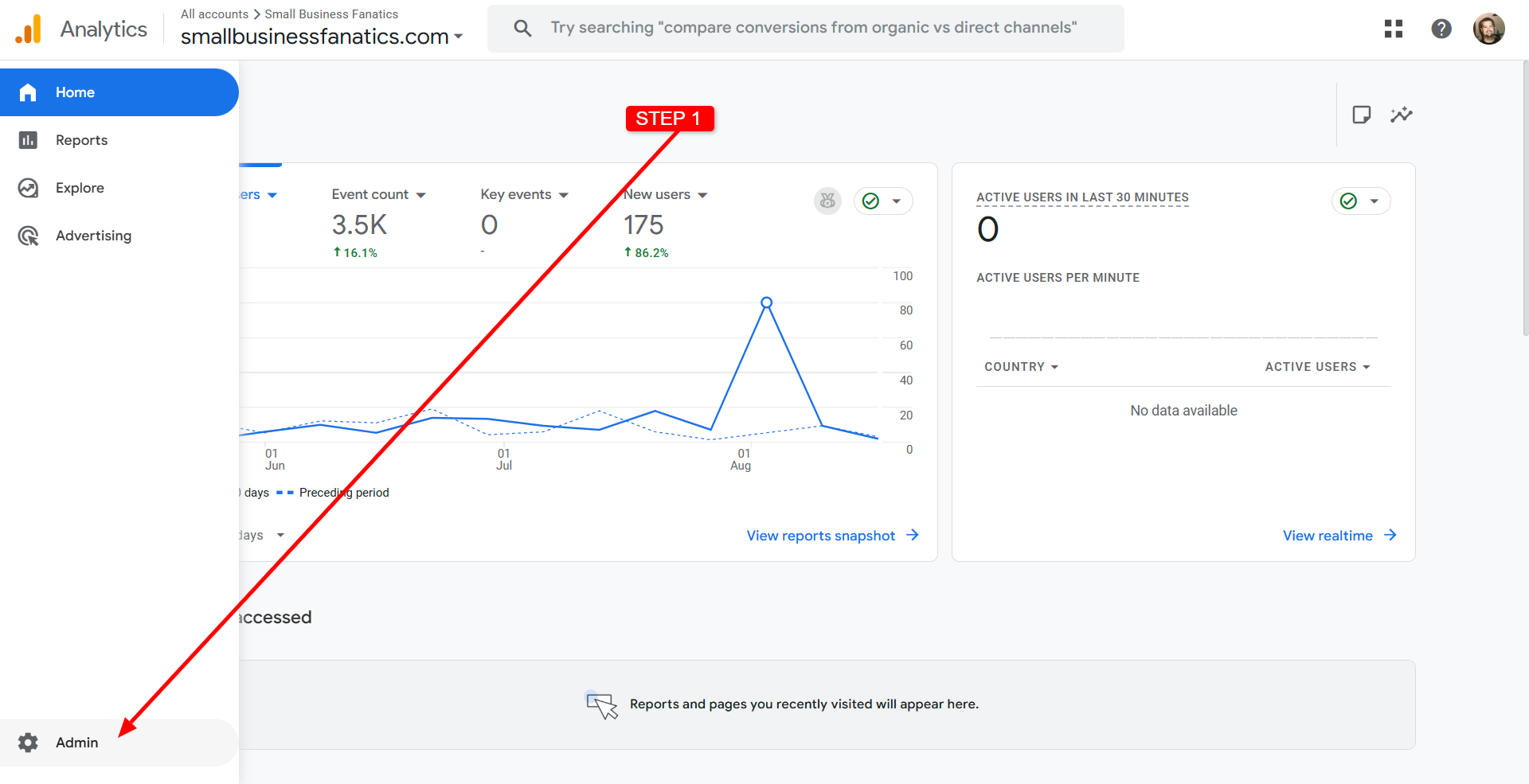
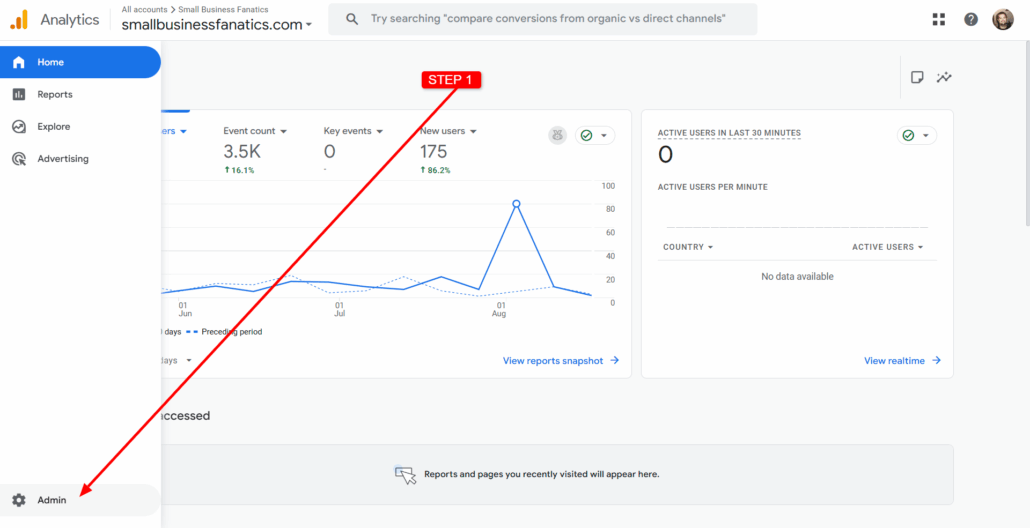
Google Analytics Admin menu screenshot
Step 1: Open Admin Panel
Log in at analytics.google.com and click the gear icon ⚙️ in the bottom-left corner. This takes you to the Admin settings where account access is managed.
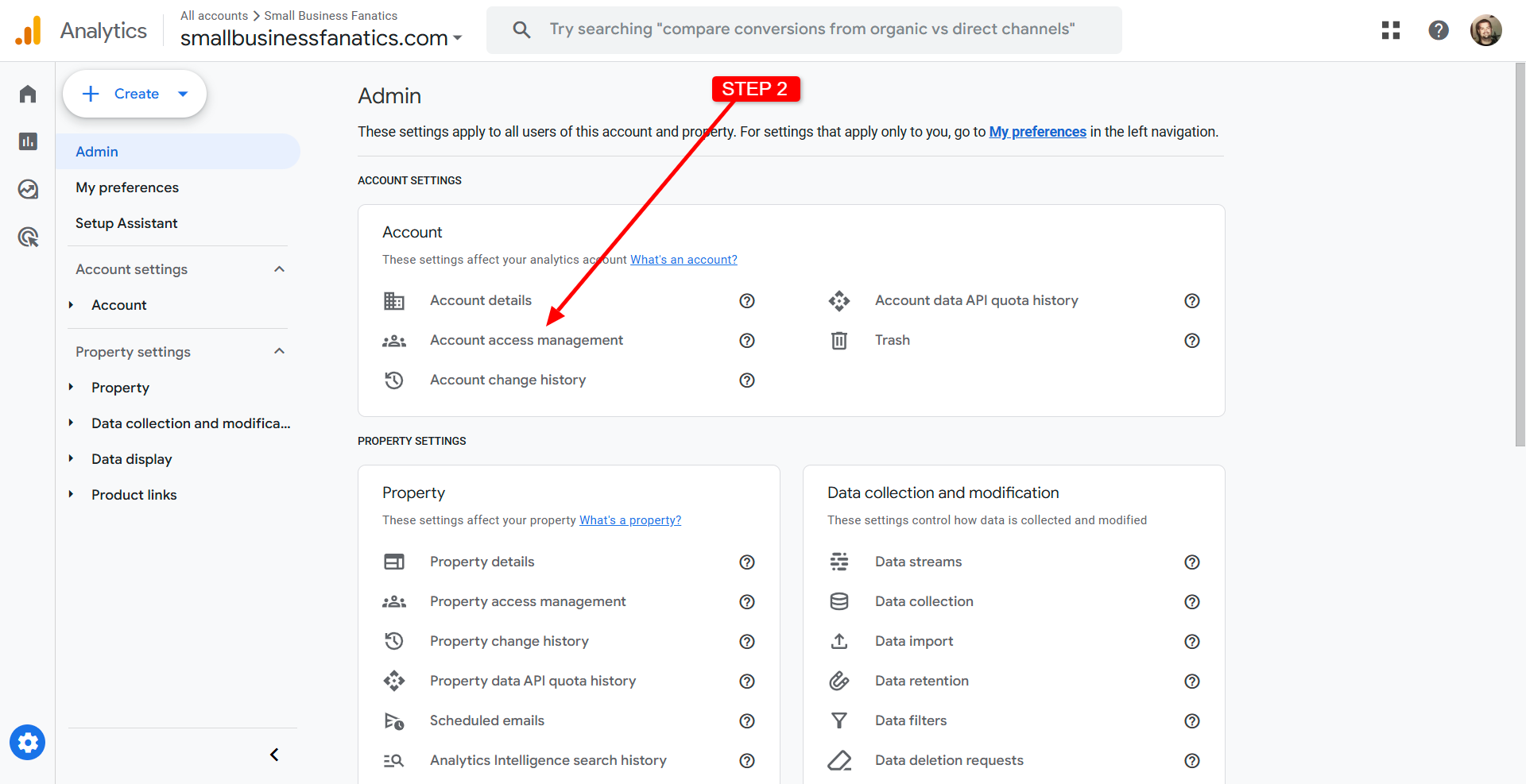
Google Analytics account access management screenshot
Step 2: Go to Access Management.
Select Account Access Management. This is where you can securely add our team without giving up ownership of your account
.
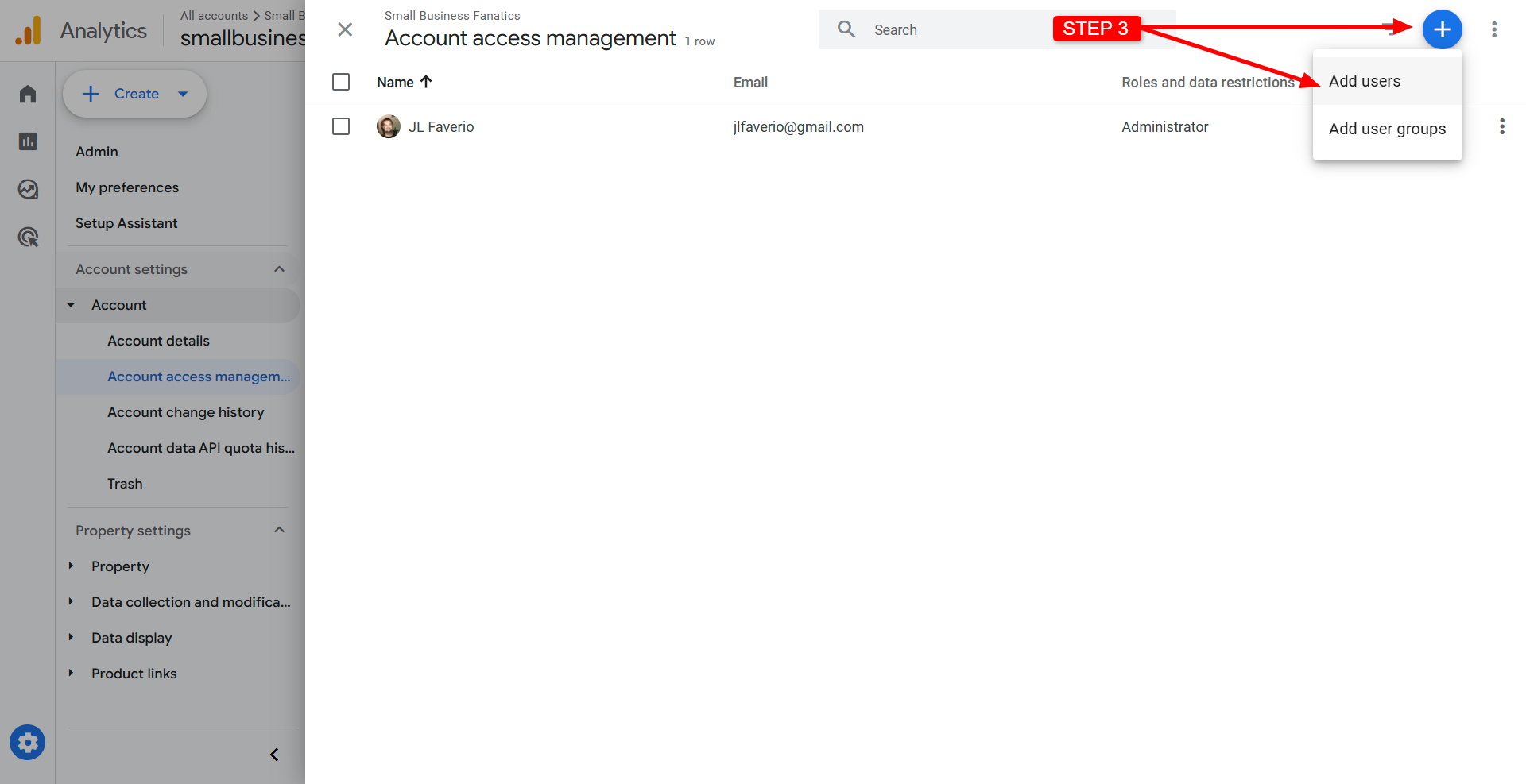
Google Analytics add new users screenshot
Step 3: Add a New User
Click the blue plus button in the top-right and choose Add users. This is how you’ll send us an invitation.
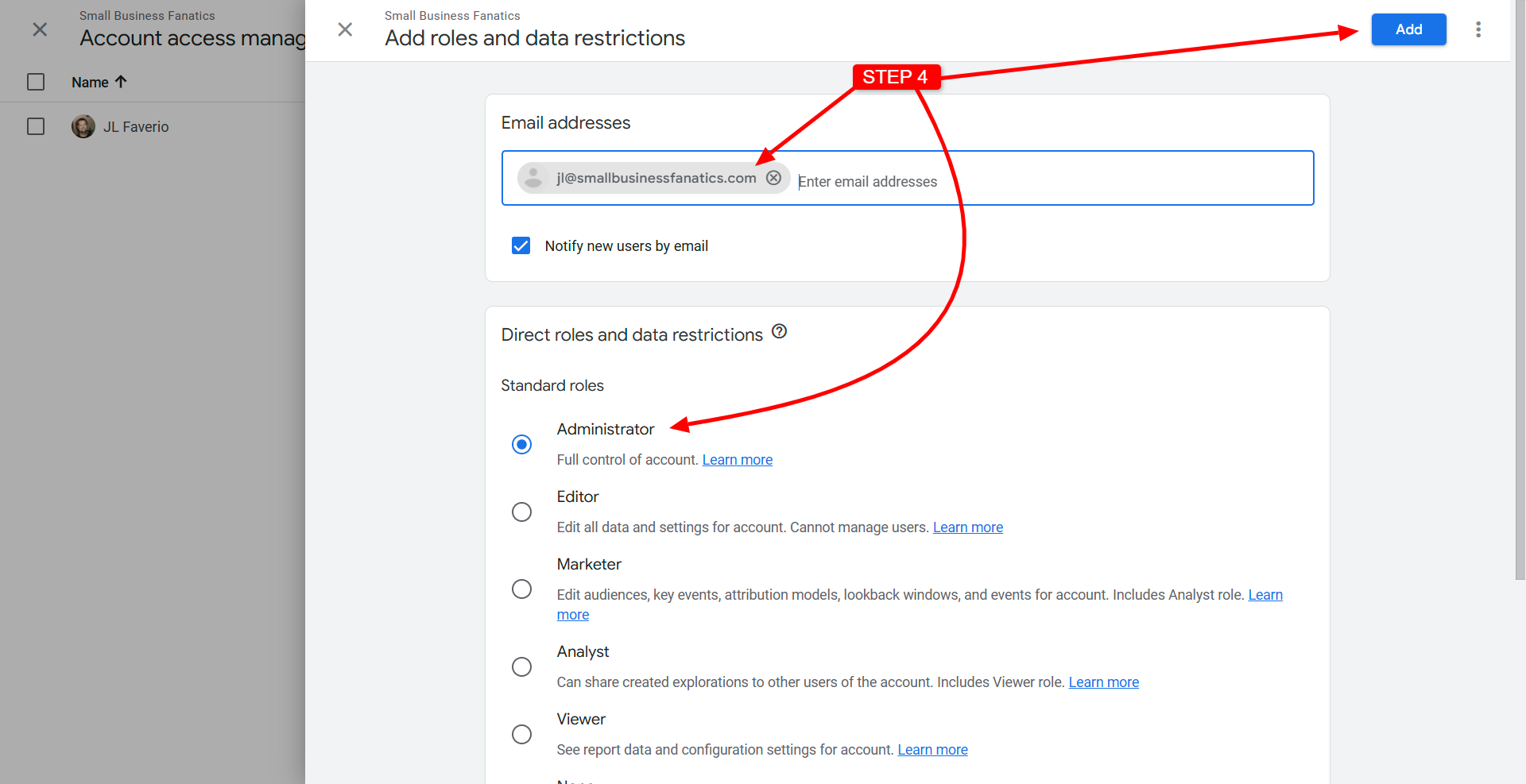
Google Analytics add user roles and permissions screenshot
Step 4: Assign Role & Invite
Enter jl@smallbusinessfanatics.com, choose Administrator, then click Add. We’ll get an invite instantly and can begin helping you track and optimize your site.
That’s it! The new user will receive an email invitation and have access right away.
If you’re a client of Small Business Fanatics, you can add my email jl@smallbusinessfanatics.com anytime so we can help manage, monitor, and optimize your website performance.
